|

-
Aug 15th, 2006, 02:39 PM
#1
[FAQ's: OD] How do I set the default Form for a folder?
In order to set a default form on a folder we need to access the folders properties. I will go through this example setting a new modified Appointment Form to one of my Calendar folders. A Calendar folder will be defaulted to the "IPM.Appointment" or "Appointment" class form.
Note: Some standard Forms like the Appointment and Task Forms do not allow you to modify the first Tab. 
Outlook 2003 used in this example...
Step 1:
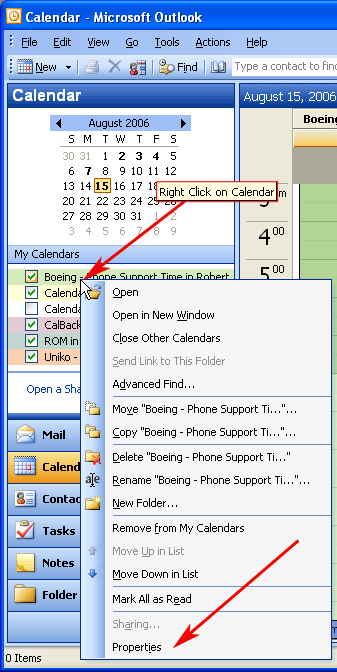
Right click on a calendar in your "My Calendars" bar located to the left side of the Canendar display view as seen in Fig. 1. You can also right click on a Calendar folder in Folder view. Then Left click on the Properties context popup menu that results.
Fig. 1
Step 2:
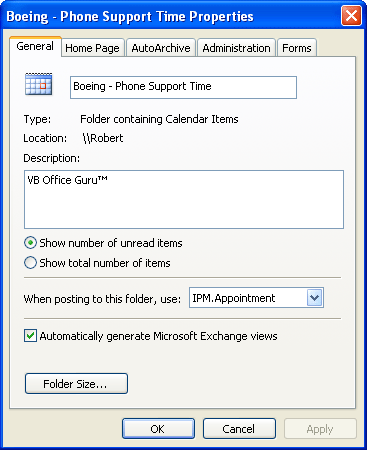
Next you will get the "Calendar" dialog window displaying the properties for the Calendar/Folder (Fig. 2). Note the form that is specified in the "When posting to this folder, use:". This is the default Form that will be used for creating and displaying Items in this folder. It will show "IPM.Appointment" by default.
Fig. 2
Step 3:
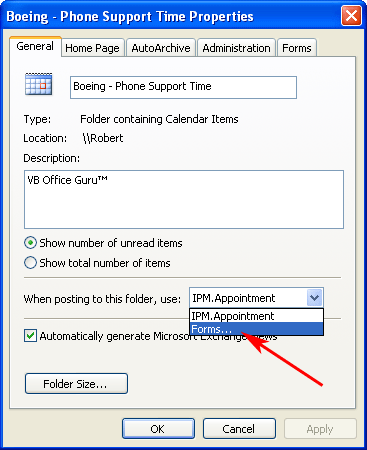
We will change the default Form by clicking on the dropdown box to display our choices. "IPM.Appointment" and "Forms..." will be available. Choose "Forms...". (Fig. 3).
Fig. 3
Step 4:
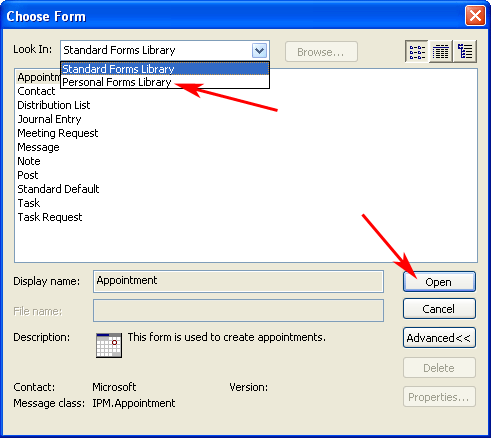
Next a "Choose Form" dialog window will popup displaying the Forms in the "Standard Forms Library" and we will change our selection to the "Personal Forms Library" (Fig. 4)..
Fig. 4
Step 5:
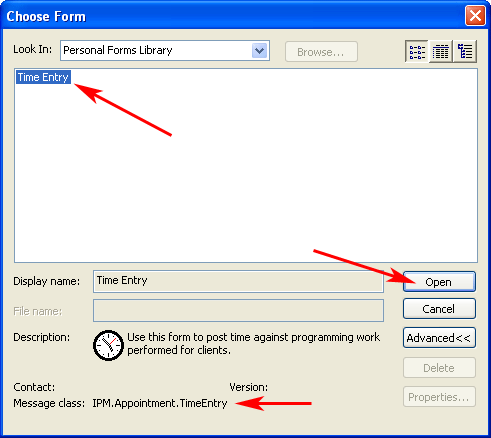
Select your custom/modified form from your available Forms (Fig. 5). Note: must have a modified/custom form already published or just use a different Standard Form from the Standard Forms Library.
Fig. 5
Step 6:
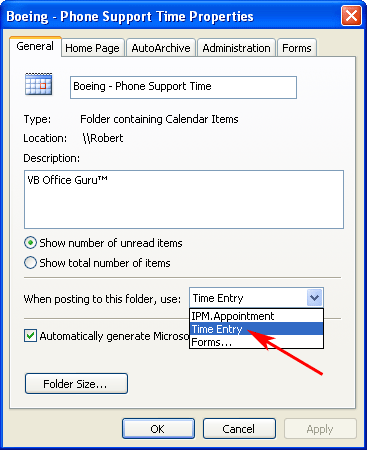
We can now view our new default Form is set by going back to the folder properties and checking the "When posting to this folder, use:" and see that "Time Entry" is selected (Fig. 6a). You can also see that "Time Entry" is now a choice in the dropdown of available Forms to use as a default (Fig. 6b).
Fig. 6a
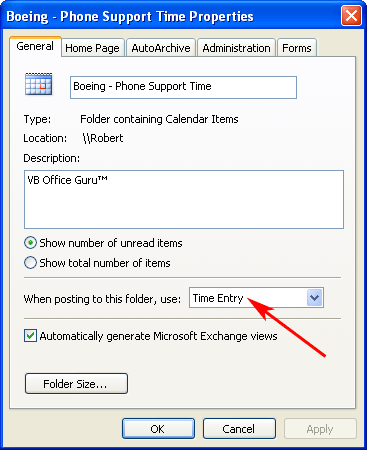
Fig. 6b
Step 7:
Lets test it by creating a new item in the Calendar folder and note that our custom Form is being displayed (Fig. 7).
Fig. 7

Last edited by RobDog888; Aug 23rd, 2006 at 02:00 PM.
VB/Office Guru™ (AKA: Gangsta Yoda™  ®) ®)
I dont answer coding questions via PM. Please post a thread in the appropriate forum.
Microsoft MVP 2006-2011
Office Development FAQ (C#, VB.NET, VB 6, VBA)
Senior Jedi Software Engineer MCP (VB 6 & .NET), BSEE, CET
If a post has helped you then Please Rate it! 
• Reps & Rating Posts • VS.NET on Vista • Multiple .NET Framework Versions • Office Primary Interop Assemblies • VB/Office Guru™ Word SpellChecker™.NET • VB/Office Guru™ Word SpellChecker™ VB6 • VB.NET Attributes Ex. • Outlook Global Address List • API Viewer utility • .NET API Viewer Utility •
System: Intel i7 6850K, Geforce GTX1060, Samsung M.2 1 TB & SATA 500 GB, 32 GBs DDR4 3300 Quad Channel RAM, 2 Viewsonic 24" LCDs, Windows 10, Office 2016, VS 2019, VB6 SP6
 Posting Permissions
- You may not post new threads
- You may not post replies
- You may not post attachments
- You may not edit your posts
-
Forum Rules
|
Click Here to Expand Forum to Full Width
|


 Reply With Quote